Setting up S/MIME certificates in Outlook
The functions for using S/MIME certificates are not available in the ‘new Outlook’. It is currently unclear when Microsoft will integrate these functions.If you need to use encrypted communication with S/MIME, please use the classic Outlook.
Switch back to classic Outlook
In the top right corner of the title bar, there is a button labeled "Back to classic Outlook"..
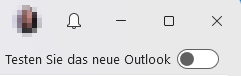
Clicking on it closes the new Outlook and automatically starts the classic version with all previous data.
Setting up S/MIME certificates in Classic Outlook
Please note: screenshots below will be updated to an english version later on.
Procedure and positions of buttons do not vary.
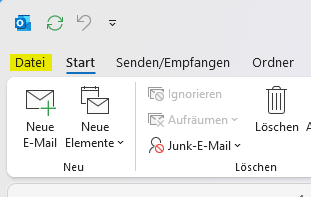
In classic Outlook, select "File" from the menu in the upper right corner:
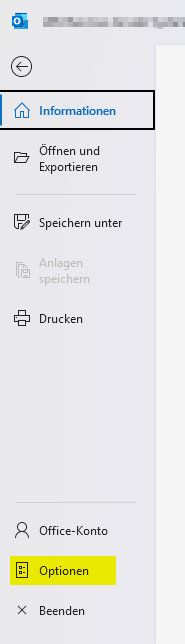
In the next window, click on "Options" in the bottom left corner:
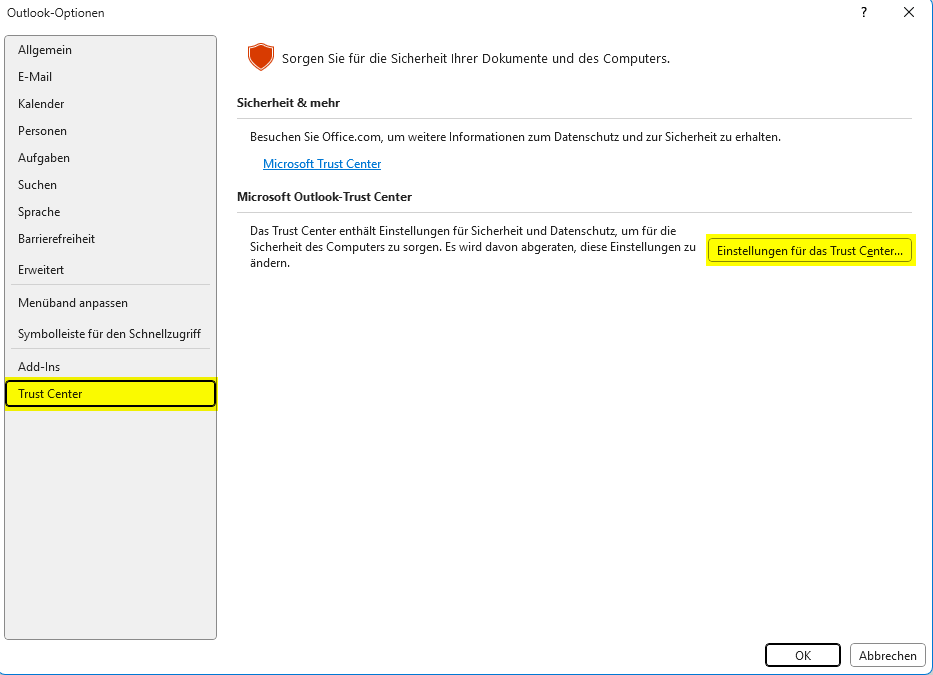
In the following window, select the "Trust Center" menu item on the left and click the "Trust Center Settings..." option in the right-hand area.
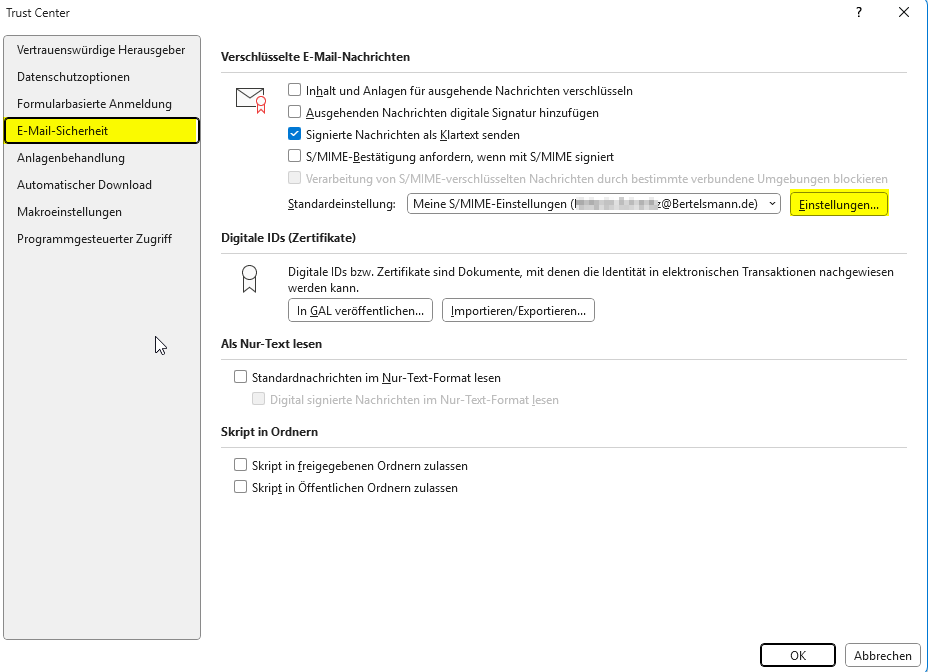
Then select "Email Security" in the next section. Click the "Settings" option on the right.
The current S/MIME certificate must be entered in the following window under "Signature certificate" and "Encryption certificate":
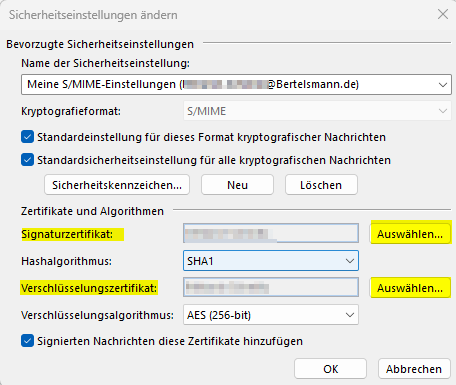
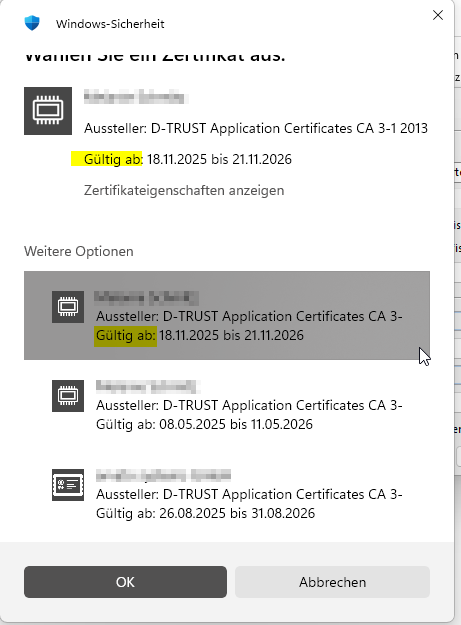
To do this, click on "select" for each and find the latest S/MIME certificate in the displayed selection.
It's best to refer to the "Valid from:" date display.
Confirm with OK.
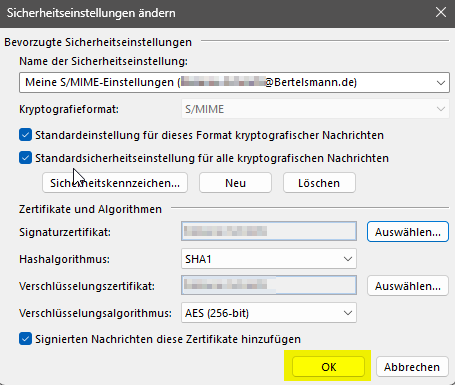
Then confirm the "security settings" with OK.
Finally, all other windows can be closed with "OK".
For further questions or problems, please contact the Arvato Systems Service Desk: +49 5241 80-88087 | 88087@bertelsmann.de.